
For lesson setup, accounts, and privacy, use Google Maps for teachers. If you still need to choose among Maps, My Maps, and Earth, use the product comparison. For an ordinary Maps saved list rather than a layered My Map, check that separate list’s view and edit rights instead.
View
Teacher owns the map. Students inspect it. Use this for a class legend, a projected demo, or a finished example.
Edit
Teacher owns the map. Named students or a small group can change it. Use this only when the product is one shared map.
Own separately
Each student or pair creates their own map and shares view (or edit) access with you. Use this for graded work.
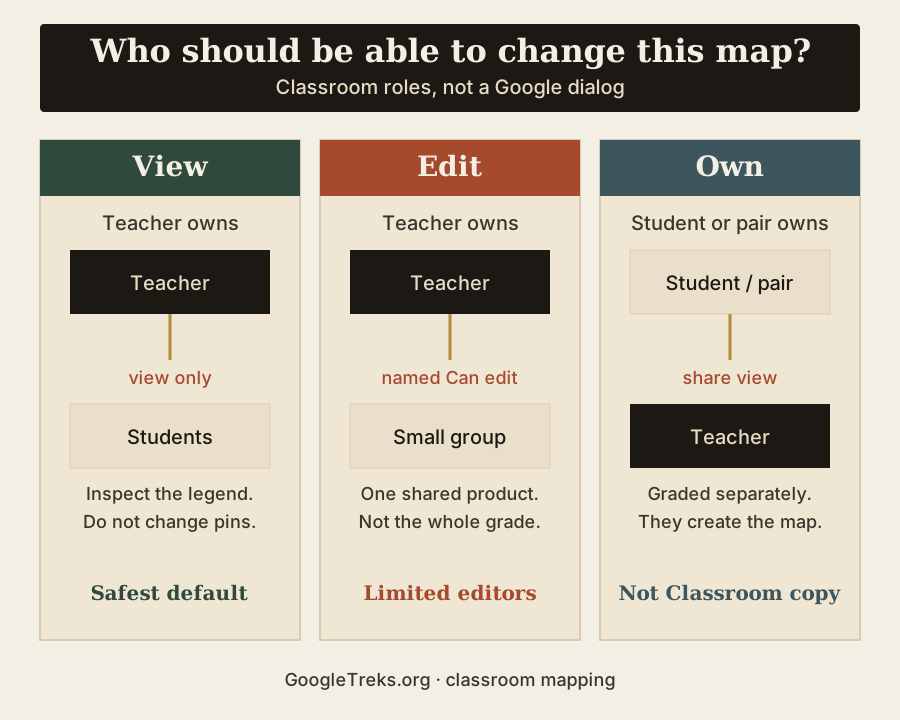
Choose the sharing model first
There is no single correct setting. The job picks the model.
| Model | Best use | Who owns it | Who can edit | Privacy exposure | Grading | Main risk |
|---|---|---|---|---|---|---|
| Teacher owns, students view | Class example, projected lesson, finished legend | Teacher | Teacher only | Low if restricted to named people or a view link | You are not grading student edits on this file | Students still may export, print, or reshare if they can open it |
| Teacher owns, named students edit | One group product with three or four editors | Teacher | Named people with Can edit | Editors can change captions and media | One shared artifact; hard to score individuals | Whole-class edit access; accidental deletion |
| Student or pair owns, teacher views | Graded projects and student-owned map assignments | Student or pair | Owners; teacher views unless they need to comment in-map | Keep restricted; do not make public to “fix” permissions | Clear owner; collect each student or pair’s map link | Wrong account; student leaves the domain |
| Public map for embed or the open web | A finished map with no student personal data | Usually the teacher | Keep view-only unless you intend public editing | Anyone can find a public map | Not a student hand-in | Student names, homes, or photos on a findable map |
Recommended default: teacher-owned, students view. Switch to edit or separate ownership only because the job requires it.
Decide in one minute
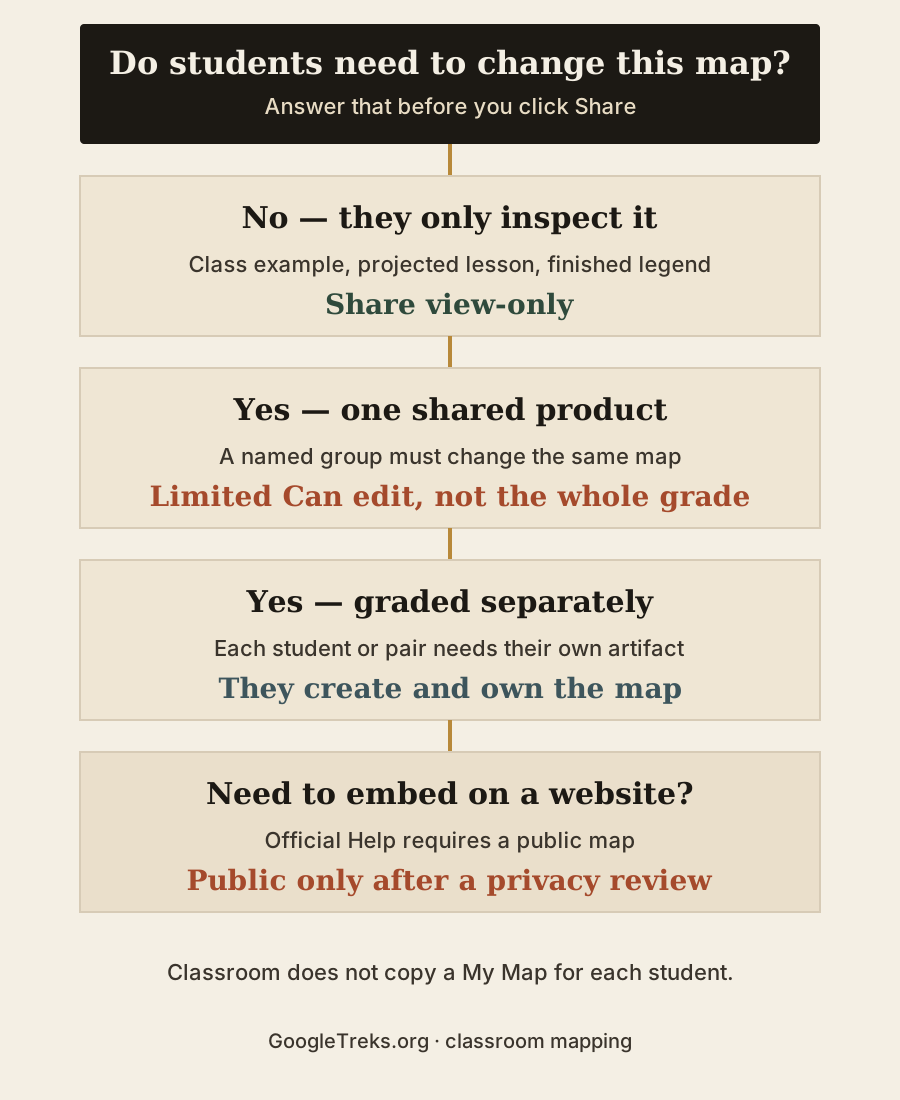
- Do students need to change this map? If no, share view-only.
- Is the product one shared map for a named group? If yes, give those people Can edit. Not the whole grade.
- Is each student or pair being assessed on their own map? If yes, they create and own it, then share view access with you.
- Do you need to embed the map on a site? Official Help requires the map to be public. Run a privacy review first.
- Can school accounts open Maps at all? If Additional Services are blocked, sharing will fail before permissions matter.
How to share a My Map for viewing
Maps in My Maps live in Google Drive. Sharing settings in Drive and My Maps stay in sync. Drive Help uses Can view or Can edit. Can comment on a map behaves like Can view.
From My Maps on a computer
- Sign in to My Maps.
- Open the map.
- In the left panel, click Share.
- Choose how people get in:
- Allow link sharing when you will send the URL to specific people.
- Invite named people when you know their school emails.
- Make your map public only when anyone should be able to find it.
- Keep access at view, not edit, unless the job requires editors.
- Click Done or Save changes.
- Click Preview if you own the map and want to see the viewer.
My Maps Help is the current official procedure. Menu labels move; recheck that page if a button is missing.
From Google Drive
- Open Drive, find the map, click it once.
- Click Share.
- Enter school emails (a person, a group, or a mailing list).
- Set Can view.
- Send the invite or copy the link.
Send a view link to people without a Google account
Google Earth Outreach’s current My Maps tutorial notes that maps are private by default, and that you can change edit in the map URL to view before sending so a login is not required. Use that only for a viewable map with no student personal data. Do not treat a URL trick as a privacy control.
Viewers are not locked out of export. Official Help says that in the map viewer you can still search, show or hide layers, use satellite imagery, and share, export, and print. View-only stops editing; viewers may still share, export and print.
How to let students edit the same map
Use this when the assignment is one shared product: a group legend, a layer debate, a class facilities map.
- Keep the teacher as owner.
- Share with named people as Can edit.
- Prefer three or four editors, not a whole class.
- Set rules before you open edit: one layer per group, a naming prefix, no deleting another group’s points, captions before the bell.
- To revoke access, open Share again and remove the person or change them to Can view.
Editors can change anything they can reach, including your legend. Official Help does not document Docs-style version history for My Maps. Do not promise that you can roll the map back like a Doc. Before a risky edit session or account handoff, export and verify the map or required layers and keep the original until the copy passes.
If students cannot edit, check the account, that they were actually given Can edit, and that they are not opening a view URL.
One map per student or pair
This is the graded-work model. It is not Google Classroom “make a copy for each student.”
Current official Classroom Help says that option copies Google Docs, Sheets, or Slides (and, in a related note, Vids). It does not list My Maps.
Each student or pair creates and owns a map:
- Students sign in with the school account that is allowed to use Maps.
- Each student or pair goes to My Maps and clicks Create a new map.
- They title it with a class naming pattern (
Period 3 — Rivera — watershed). - They share the map with you as Can view (or Can edit if you must leave in-map comments).
- They also hand in a table of features. That is the accessible copy and the backup if the live map will not open.
If you need a common starting layer, export your teacher map to KML/KMZ and have students import it into maps they own. If the starting layer is a spreadsheet of public sites, prepare and import the table before you share.
For My Maps import errors, use the troubleshooting guide. To open a KML or KMZ file in Earth instead, use the separate import guide.
Google Classroom
You can put a My Map in Classroom. Classroom does not become a My Maps assignment engine.
What official Classroom Help supports:
- Attach a link.
- Attach a Drive file. Co-teachers can edit attached Drive files; students are read-only unless you change sharing.
- Make a copy for each student for Docs, Sheets, or Slides—not listed for My Maps.
Practical pattern:
- View-only class map: attach the view link, or attach the Drive file and leave students on view.
- Graded student maps: the assignment instructions tell students to create a map and share it with you. They paste the link in the hand-in. Do not assume Classroom created a private copy.
Who owns the map is whoever created it in My Maps, not whoever posted the Classroom card.
Workspace for Education and admin restrictions
Google Maps is an Additional Service, not a core app like Classroom or Docs. Administrators decide whether school accounts can open it. Additional Services are off by default in primary and secondary institutions. For users designated under 18, official admin Help requires parental consent before turning Additional Services on, with an annual reconfirmation.
If Maps is on for under-18 school accounts, age-based Help currently lists extra Maps/Earth limits such as no public posts/reviews, no Location History, no Timeline, and no location sharing. Those limits are not a sharing-mode substitute. On an eligible personal account, Timeline remains a separate record of past visits, while the live Location Sharing guide explains consent, recipient visibility, and stopping. Neither is a My Maps permission model.
Before class, a teacher can check:
- Can you open mymaps.google.com with a student-like school account?
- Does a view link open for a student already signed into school, not a personal Gmail?
- Is external sharing restricted so a personal Gmail cannot open a school-owned map?
If the school blocked Maps, do not send minors to personal Gmail as a workaround. Use the mapping category the district already approved. Use the mapping research guide to organize source notes and text alternatives in the approved tool.
This classroom guidance is not legal advice.
View, edit, public, and embed
| Mode | What it does | Classroom use |
|---|---|---|
| Restricted / specific people | Named accounts with Can view or Can edit | Default for classwork |
| Link sharing | People with the URL can open it at the access you set | Convenient; still choose view vs edit |
| Public | Anyone can find the map | Finished maps with no student personal data |
| Embed | Menu: Embed on my site. Official Help: the map must be public | A class site or newsletter, after a privacy review |
Public is not required for ordinary class sharing. Public is required for the documented embed path. Do not make a map public merely to solve a permissions error.
Ownership and grading
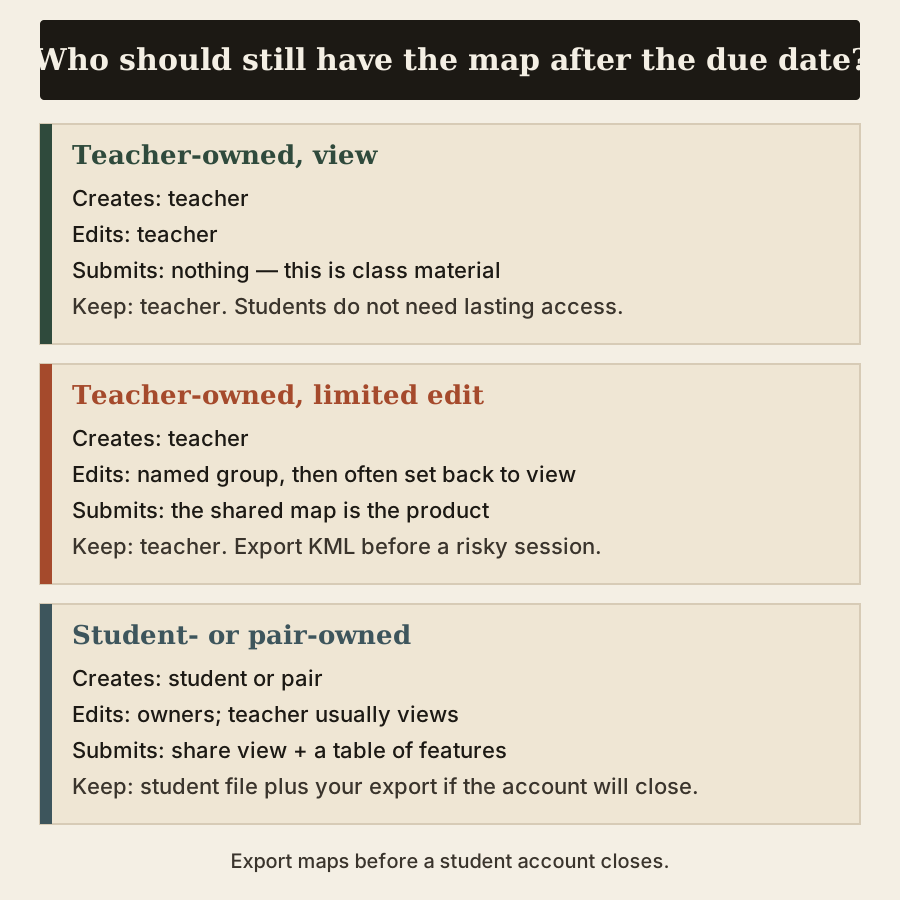
- Graded work: the student or pair should own the map. You hold view access and a table of features.
- Class material you will reuse next year: you should own it. Students view.
- After the due date: you can change Can edit to Can view on a teacher-owned map. That stops further edits. It does not create version history.
- Transfer: Before deleting a shared map, My Maps Help says to make someone else its owner first; check the transfer workflow and account limits in Drive Help. Work/school transfers are limited to the same organization, and personal accounts cannot transfer files to work or school accounts. Availability may depend on account and administrator controls. Try a noncritical map first, and export KML/KMZ—and any needed CSV layer—before the student account closes.
- Departing student account: if the owner’s account is deleted and you were only a viewer, current Help does not give you a restore button. Collect the export before the account closes.
Do not treat one student’s map as permanent department curriculum unless you have an export in a place you control.
Privacy and student safety
Before sharing:
- Do not map student homes or door-level bus stops.
- Avoid last names on a map that can leave the class.
- No identifiable photos of minors on a public or embeddable map.
- Public means findable. “We will unshare it later” is not a privacy plan.
- Use the least sharing that completes the job.
- Do not work around a school block with personal Gmail for minors.
Accessibility
A shared interactive map must not be the only format.
- Repeat the legend in a table.
- Do not code meaning by color alone.
- Caption photos and media.
- Offer print or a static export for anyone who cannot use the live view.
- When you project, say the place names; do not point silently.
Student can’t open the map
- Wrong account. Official Help lists this first. Sign out of personal Gmail; open the school account.
- Not actually shared. You invited a different address, or you copied an edit URL they cannot use.
- Admin blocked Maps. Additional Services off, or under-18 access not consented.
- Domain sharing restricted. External Gmail cannot open a school-owned map.
- Map deleted or in Trash. It can still appear in My Maps until it is permanently deleted from Drive Trash.
- They need edit and only have view. They are in the viewer. That is expected for view-only.
If the live map will not open, grade the table of features. Do not spend the period fighting accounts.
Common sharing mistakes
- Giving the whole class Can edit because sharing felt easier than naming a group.
- Making the map public to “just get it to open.”
- Embedding a public map that still has student information.
- Assuming Classroom made a My Map copy for each student.
- Sending minors to personal Gmail because the school account is blocked.
- Leaving a graded map owned only by one student with no export.
- Forgetting to set editors back to view after submission on a teacher-owned map.
Teacher checklist
- I can state whether students must view, edit one map, or own separate maps.
- I tested the link while signed into a student-like school account.
- Named editors are a short list, or there are no editors.
- No homes, last names, or photos of minors on anything public.
- There is a table or print equivalent.
- I have a KML/KMZ export of any map I cannot afford to lose.
- Classroom is attaching a link or instructions; students create separate maps when the assignment requires them.
The student Google Treks examples give twelve project briefs to pair with a safe view or edit model.
Questions teachers actually ask
Can students edit a Google My Map? Yes, if someone with access shares it as Can edit and their account can open My Maps.
Can two people edit the same Google My Map? Yes. Drive-style Can edit is the documented path. Official Help does not promise conflict-free simultaneous editing of the same marker. Coordinate, then refresh if a change does not appear.
Can students view a My Map without editing? Yes. Can view (and Can comment, which Help says matches view on maps).
Do students need a Google account? Creating and editing require signing in to My Maps. Viewing a view URL may work without a Google account if you send a view link. School work should still use the school account the admin allows.
Can I assign Google My Maps in Google Classroom? You can attach a link or a Drive file. That is not a native My Maps assignment type.
Can Google Classroom make a copy of a My Map for each student? Official Classroom Help does not list My Maps among the file types that option copies. Have students create their own maps.
How do I make a My Map view only? Share as Can view. On a teacher-owned map, change editors to viewers after the work is done.
Can I make a My Map public? Yes, through Make your map public. Anyone can find it.
Can I embed a My Map? Yes, via Embed on my site, and official Help says the map must be public.
Why can’t a student open my map? Wrong account, not shared, admin block, domain restriction, or deleted map. See the diagnostic list.
Does My Maps have version history? Current My Maps Help does not document Docs-style version history. Export KML/KMZ before a risky edit session.
Can students use My Maps on an iPad or phone? Official Help: you cannot create My Maps on mobile. Students can view a map in a mobile browser or, depending on current Maps UI, from Google Maps. Editing belongs on a computer.
Product information checked
Checked 7 September 2026 against current official Google Help: My Maps Help for creating maps, the map viewer, sharing, embed, export, print, and deleting or recovering a map; Drive Help for managing My Maps files and ownership-transfer rules, including same-organization limits for work/school accounts; Classroom Help for attachments and “make a copy for each student”; Workspace for Education Help for Additional Services and age-based Maps/Earth restrictions; Maps Help for viewing My Maps; and Google Earth Outreach’s current My Maps sharing tutorial.
Interfaces, admin defaults, and Classroom attachment menus change. Recheck official help and the school account before the lesson. The Maps Guide is an independent classroom-mapping resource. It is not a Google product.
Our guides used
- The Maps Guide: Google Maps for teachers: pick the tool, then teach the place.
- The Maps Guide: How to Export Google My Maps to KML or KMZ—and a Layer to CSV.
- The Maps Guide: How to Import CSV, Excel, or Google Sheets into Google My Maps.


